How to Boost WiFi Signal Through Walls (No Extra Hardware Needed)
Another video call frozen mid sentence. Another Netflix buffer wheel spinning while everyone else in the room gives up and reaches for mobile data instead.
If you have typed how to boost WiFi signal into a search bar out of pure frustration, the good news is that almost every one of these dropouts traces back to a small, fixable set of physics and firmware problems that most guides never actually explain.
This article covers the exact signal loss math, the router settings buried three menus deep, and the device side fixes that competing articles leave out entirely, so you can stop guessing and start measuring.
⚡ Quick Answer (Google AI Overview Extraction)
Move your router to a central, elevated, open location and reduce channel width on 2.4GHz to 20MHz for better wall penetration. Log into your router firmware and increase Tx Power output while enabling explicit beamforming if your hardware supports it.
If a dead zone remains after these two steps, add a MoCA 2.5 backhaul or a mesh node rather than a single range extender, since these preserve far more real world throughput. Most households see a measurable dBm improvement within fifteen minutes using nothing but existing hardware and firmware settings.
WiFi Boosting Methods Compared
| Method | Signal Gain (dBm) | Throughput Retained (%) | Wall Penetration | Cost | Technical Complexity |
|---|---|---|---|---|---|
| Router Antenna & Positioning | 5 to 10 dBm | 100% | Moderate | Free | Low |
| Firmware & Tx Power Tuning | 3 to 8 dBm | 95 to 100% | Moderate | Free | Moderate |
| 20MHz Channel Width Optimization | 4 to 6 dBm | 70 to 85% | High | Free | Moderate |
| Powerline or MoCA 2.5 Backhaul | Bypasses wireless loss | 90 to 98% | Excellent (Wired) | $40 to $150 | Moderate |
| Mesh Systems | 15 to 25 dBm effective | 85 to 95% | Excellent | $150 to $500 | Low |
| Secondary Router in AP Mode | 10 to 20 dBm effective | 90 to 100% | Good | $30 to $100 | High |
Zero Cost Native Firmware and Physics Tweaks Without a Booster
Before spending a single dollar, it is worth understanding what your signal number actually means. Wireless signal strength is measured in dBm, a logarithmic scale that runs from roughly -30 dBm (standing right next to the router) down to -90 dBm (functionally unusable).
- -50 dBm to -60 dBm: A strong, reliable connection for most households.
- -70 dBm or lower: Will start dropping packets during busy video calls or gaming periods.
Checking this number, rather than relying on the vague bar icon in your taskbar, is the fastest way to confirm whether a fix actually worked.
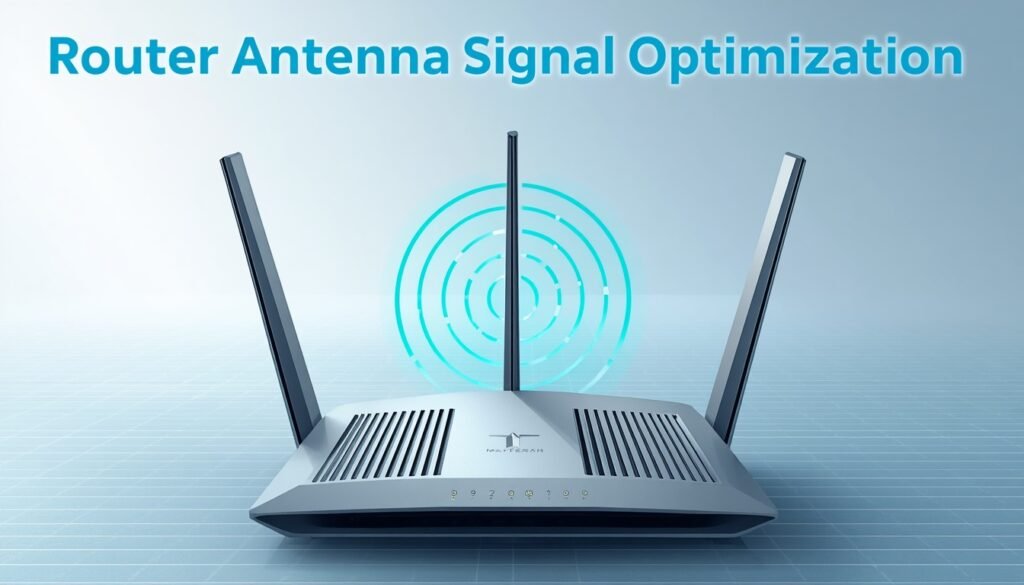
Physical position matters more than most people expect. Router antennas radiate signal outward in a donut shaped pattern, not straight ahead like a flashlight. A router sitting on the floor or tucked inside a cabinet wastes a large portion of its output before the signal ever reaches a wall.
Elevate the router, keep the antennas vertical, and place it in a central, open location away from:
- Metal filing cabinets
- Mirrors and glass surfaces
- Large appliances (refrigerators, microwaves)
All of these reflect or absorb radio frequency energy instantly.
Antenna polarization also plays a role that almost no consumer guide mentions. Most router antennas are linearly polarized, meaning they perform best when aligned in the same orientation as the antenna inside your laptop or phone.
On a multi antenna router, angling one antenna vertically and one at roughly 45 degrees increases the odds that at least one antenna aligns well with whatever device is receiving the signal, which measurably improves reception in mixed device households.
Learning how to boost WiFi signal without buying new hardware often comes down to channel width rather than raw transmit power. Most routers default the 2.4GHz band to 40MHz for higher theoretical speed, but that wider channel concentrates energy less efficiently and suffers more from overlap with neighboring networks.
Manually setting the 2.4GHz band to a 20MHz channel width, and choosing channel 1, 6, or 11 specifically (since these are the only non overlapping options in North America), trades a small amount of peak speed for noticeably better wall penetration and range.
The 5GHz band decays far faster through walls due to its shorter wavelength, so it should be reserved for devices in the same room as the router rather than relied on for whole home coverage.
If your home network has been struggling with weak coverage for a while and these physics level adjustments are new to you, our dedicated breakdown of how to fix a weak WiFi signal walks through placement, interference, and driver diagnostics in far more depth.
Tx Power, short for transmit power output, is a setting buried inside the wireless configuration menu on most router firmware, often listed as a percentage or in milliwatts.
Manufacturers frequently ship routers with Tx Power set below the legal maximum to reduce heat and power draw. Raising this to 80 or 100 percent, where your router firmware allows it, is one of the most direct answers to how to boost WiFi signal without a booster, since it increases the actual radiated output rather than just adjusting how devices interpret an existing signal.
Beamforming is worth understanding rather than simply toggling on:
- Implicit Beamforming: Estimates a connected device’s location using signal reflection and adjusts the antenna array accordingly.
- Explicit Beamforming: Part of the 802.11ac and newer standards, where the client device actively reports its position back to the router for a more precise, continuously updated signal shape.
If your router and your devices both support explicit beamforming, confirm it is enabled in the wireless settings, since implicit only mode leaves meaningful gain on the table.
If your household already leans on WiFi 6E or newer hardware, the 6GHz band deserves a look. It offers dramatically less interference than 2.4GHz or 5GHz since almost no legacy devices or neighboring networks currently use it, but its range is the shortest of the three bands.
Enable band steering so devices automatically shift to 6GHz when close to the router and fall back to 5GHz or 2.4GHz as they move away, rather than manually locking every device to a single band.
Boosting WiFi Signal Through Walls and Between Rooms
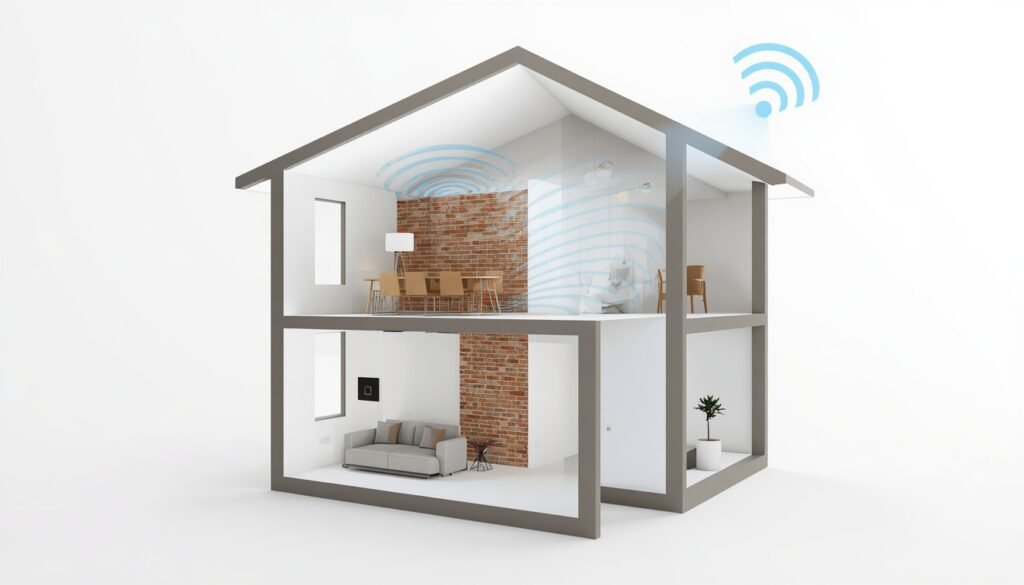
Wall material determines how much signal you lose before it reaches the next room, and the numbers vary more than most people assume:
- Drywall: Costs only 3 to 5 dBm of signal loss per wall (barely noticeable).
- Brick and Plaster: Climbs to 6 to 12 dBm per wall.
- Poured Concrete: Common in basements and apartments, absorbing 12 to 25 dBm on its own.
This is the physics behind how to boost WiFi signal through walls, and it explains why the exact same router performs beautifully in one home and terribly in another built from different materials.
For households trying to achieve a genuinely strong WiFi signal in every room, Dynamic Frequency Selection, or DFS, channels on the 5GHz band are an underused option. These channels sit in a frequency range shared with weather radar systems, which is why routers avoid them by default, but they are typically far less congested than the standard 5GHz channels every neighboring router competes for.
Enabling DFS channel support in your router firmware, where available, can meaningfully reduce interference in dense apartment buildings, though the router must briefly vacate the channel if radar activity is detected nearby.
When physical barriers cannot be worked around through settings alone, MoCA 2.5 adapters offer one of the most overlooked solutions available. MoCA repurposes the existing coaxial cable wiring already run through most homes for cable television, converting it into a dedicated, wired backhaul capable of speeds well beyond what most internet plans require.
Since the signal never travels through air at all for the backhaul portion, wall material becomes irrelevant, and a wireless access point plugged into a MoCA adapter on the far side of the house delivers a full strength connection with none of the throughput loss that plagues traditional extenders.
Powerline AV2 adapters work on a similar principle using electrical wiring instead of coaxial cable, making them a reasonable alternative in homes without existing coax runs to every room. Performance depends heavily on the electrical panel layout, and adapters plugged into the same circuit generally outperform those separated by a breaker panel, so testing placement before committing to a permanent installation is worthwhile.
For a single stubborn dead zone rather than whole home coverage problems, a directional antenna aimed specifically at the affected area concentrates signal in one direction instead of broadcasting it evenly in all directions, trading coverage elsewhere for a meaningful boost exactly where it is needed.
Many of these wall penetration symptoms show up first as a connection that looks fine on paper but simply refuses to load anything. If that sounds familiar, our guide on WiFi connected but no internet access separates true signal loss from DNS, IP conflict, and router side causes.
Laptop and Computer Signal Optimization
A weak signal reading on a laptop sitting directly beside the router almost always points to the device rather than the router itself, and this is exactly the gap most competing articles skip entirely. Understanding how to boost wifi signals on laptop hardware starts inside Device Manager rather than the router admin panel.
Follow these step-by-step Windows Wireless Adapter Adjustments:
- Press
Windows + Xand select Device Manager. - Expand Network Adapters, right click your wireless adapter, and select Properties.
- Open the Advanced tab.
- Locate Roaming Aggressiveness and change the value to Highest. (This forces Windows to switch quickly to a stronger node rather than clinging to a distant access point).
- Locate Preferred Band and change it to No Preference or Prefer 5GHz Band. (Prevents Windows from locking onto slow 2.4GHz networks for battery efficiency).
- Locate Transmit Power and set it to Highest. (Increases the return signal strength sent from the laptop back to the router).
- Open the Power Management tab and uncheck Allow the computer to turn off this device to save power.
If a laptop refuses to hold a stable connection even after these adjustments, the driver itself may be the real culprit rather than any of these individual settings.
Our complete laptop not connecting to WiFi guide covers driver rollback, network stack resets, and hardware diagnostics for exactly this scenario.
Mobile and Smartphone Signal Optimization for Android and iOS
Phones behave differently from laptops on a wireless network, and the fixes for how to boost wifi signals in mobile devices center on settings that most people never open.
Start by forgetting the network entirely and reconnecting from scratch, since a stale saved profile can silently cap connection speed even when the signal bars appear full.
MAC address randomization, a privacy feature that rotates the identifier your phone presents to a network, occasionally confuses router side device recognition and access control lists, producing an intermittent weak connection that resembles a genuine signal problem:
- Android: Open WiFi Settings -> Tap Network Settings -> Privacy -> Change to Device MAC.
- iPhone (iOS): Open Settings -> WiFi -> Tap the “i” info icon -> Toggle off Private Wi-Fi Address.
Battery Saver mode on both platforms throttles background network activity to extend battery life, and this throttling frequently masquerades as how to improve WiFi signal on phone confusion when the real cause is a software limit rather than a physical one. Disabling Battery Saver restores full throughput without touching a single router setting.
For anyone specifically focused on how to boost wifi signals on android devices connecting to a dual band router, forcing a band switch manually rather than relying on automatic selection can help.
Open the WiFi network’s advanced settings and, on routers broadcasting separate 2.4GHz and 5GHz network names, connect deliberately to the 2.4GHz option when several rooms away, since the automatic band selection built into many phones favors 5GHz even when it delivers a weaker practical signal at distance.
A full network settings reset clears every accumulated configuration conflict at once and is worth trying before assuming a hardware limitation on the phone itself.
Before resetting your phone network stack, it helps to confirm your exact network details. Our guide on how to find WiFi SSID walks through locating network names on Windows, Android, and iOS easily.
How to Boost WiFi Signal Without Access to Router
Renters, dorm residents, and office workers frequently face a version of this problem that most guides never address, since changing router settings simply is not an option when the hardware belongs to someone else. Solving how to boost WiFi signal without access to router settings requires working entirely from the client side instead.
A USB WiFi adapter with a high gain external antenna is the single most effective device side upgrade available in this scenario. Built in laptop wireless cards use small internal antennas optimized for size rather than range, while a USB adapter with a dedicated 5 to 9 dBi antenna can pull in a usable signal from distances where the internal card shows nothing at all. These adapters typically cost under thirty dollars and require no administrative access to any router.
A wireless client mode bridge (sometimes called a WiFi repeater in client mode) connects to the existing network as a normal device would, then rebroadcasts that connection locally as a new, stronger access point in your immediate area. Unlike a traditional extender that requires router side configuration, a client mode bridge only needs the network name and password, making it viable in shared living situations.
On the operating system side, a full network stack reset can resolve signal issues that have nothing to do with the router at all. Open Command Prompt as Administrator and run the following commands sequentially:
DOS
netsh winsock reset
netsh int ip reset
ipconfig /release
ipconfig /renew
ipconfig /flushdns
Restart your system after executing these commands to clear corrupted routing tables and socket configurations that present as a weak or unstable connection.
If these command line steps trigger an error or fail to detect your card, our detailed walkthrough on network adapter not working covers each error code and diagnostic path in plain language.
Repositioning within the space you control also matters more than it seems. Standing near a window facing the direction of the access point, avoiding large metal furniture between you and the source, and elevating a laptop off the floor and onto a desk can each add several dBm of usable signal without touching any settings at all.
If you regularly rely on a phone hotspot as a workaround in these situations rather than fighting a weak fixed network, our guide on how to connect hotspot to laptop covers the wireless, USB, and driver level details for getting that connection running reliably on the first attempt.
A weak signal and a rejected password produce very different symptoms, and it is worth telling them apart before assuming a range problem. If a device finds the network but refuses the correct password instead of simply showing weak bars, our dedicated how to fix a WiFi authentication issue guide walks through saved profile fixes for that separate scenario.
Overall System and Performance Considerations
A signal boosting effort can be undermined by unrelated background system load, particularly on Windows machines running years of accumulated startup programs and telemetry services that compete for the same network resources a wireless adapter is trying to use efficiently.
If your laptop feels sluggish generally and not just on WiFi specifically, our guide on using a windows 11 debloater to safely boost PC speed covers trusted tools for reducing background process noise without risking system stability.
Frequently Asked Questions
How can I make my WiFi signal stronger?
Elevate the router to a central, open location, switch the 2.4GHz band to a 20MHz channel width, and raise the Tx Power setting inside the router firmware toward its maximum allowed value. These three free adjustments typically produce a measurable dBm improvement within minutes, and adding a mesh node or MoCA backhaul resolves whatever gap remains in a persistent dead zone.
Can I increase the WiFi signal?
Yes. Signal strength is not fixed once a router ships from the factory. Firmware settings such as Tx Power, channel width, and beamforming can all be adjusted after purchase, and physical changes such as antenna angle and router placement often produce a larger improvement than any single software setting on its own.
How do I boost my WiFi network?
Start with router placement and channel selection, since these cost nothing and address the majority of coverage complaints. If a dead zone persists after those adjustments, a MoCA 2.5 backhaul or a mesh system delivers the most reliable long term improvement, since both avoid the throughput penalty that a simple range extender introduces.
How to increase 2.4 GHz range?
Set the channel width to 20MHz rather than the wider 40MHz default, since a narrower channel concentrates signal energy more efficiently over distance. Selecting channel 1, 6, or 11 specifically, since these do not overlap with each other, and raising Tx Power in the router firmware further extends 2.4GHz range without any additional hardware purchase.
How to boost wifi signals in mobile?
Forget and reconnect to the network from scratch, disable MAC address randomization under the WiFi privacy settings, and turn off Battery Saver mode, since all three commonly throttle a phone’s wireless performance in ways that mimic a genuine signal problem.
How to boost WiFi signal through walls?
Concrete and brick walls with metal lath absorb far more signal than drywall, so a MoCA 2.5 backhaul or a mesh node placed past the barrier bypasses the physical loss entirely rather than fighting it with router settings alone. Enabling DFS channels on the 5GHz band can also reduce congestion enough to noticeably improve performance in dense apartment buildings.
How to boost WiFi signal without booster?
Raise the router’s Tx Power setting toward its maximum, switch the 2.4GHz channel width to 20MHz, enable explicit beamforming if supported, and reposition the router to a central, elevated location away from metal and thick walls. These firmware and placement adjustments alone resolve a large share of weak signal complaints without purchasing any additional hardware.
How to boost wifi signals on laptop?
Open Device Manager, locate the wireless adapter’s Advanced properties, and set Roaming Aggressiveness to Highest, Preferred Band to No Preference, and Transmit Power to its highest available level. Also uncheck the power saving option under the Power Management tab, since Windows frequently throttles the wireless radio during idle periods in a way that mimics a genuinely weak signal.
How to boost WiFi signal without access to router?
Use a USB WiFi adapter with a high gain external antenna, since it captures a usable signal from distances where a built in laptop card shows nothing at all. A wireless client mode bridge is another strong option, since it only requires the network name and password rather than any administrative access to the router itself.
How to get strong WiFi signal in every room?
Combine central router placement with a wired backhaul solution such as MoCA 2.5 for rooms separated by concrete or brick, and enable band steering so devices automatically shift between 2.4GHz, 5GHz, and 6GHz depending on distance from the access point. A properly placed mesh system typically achieves the most consistent whole home coverage of any single solution covered in this guide
.
Final Thoughts
Most weak WiFi complaints come down to a small number of overlooked settings rather than a genuinely broken router. Working through channel width, Tx Power, antenna placement, and device side driver settings in the order covered above resolves the overwhelming majority of dead zones without spending a single dollar.
Measure your dBm reading before and after each change, since a concrete number on screen removes the guesswork that keeps most people stuck restarting the same router over and over without understanding why.