How to See Saved WiFi Password on Android: Quick Find (2026)
Your friend needs your WiFi password and you do not remember it, since your device joined the network automatically months ago. This is one of the most common smartphone frustrations, and it has a fast, reliable solution on every modern mobile device. Learning how to see saved WiFi password on Android does not require root permissions, a computer, or any technical expertise, and this complete guide covers every native and advanced method available.
Quick Answer:
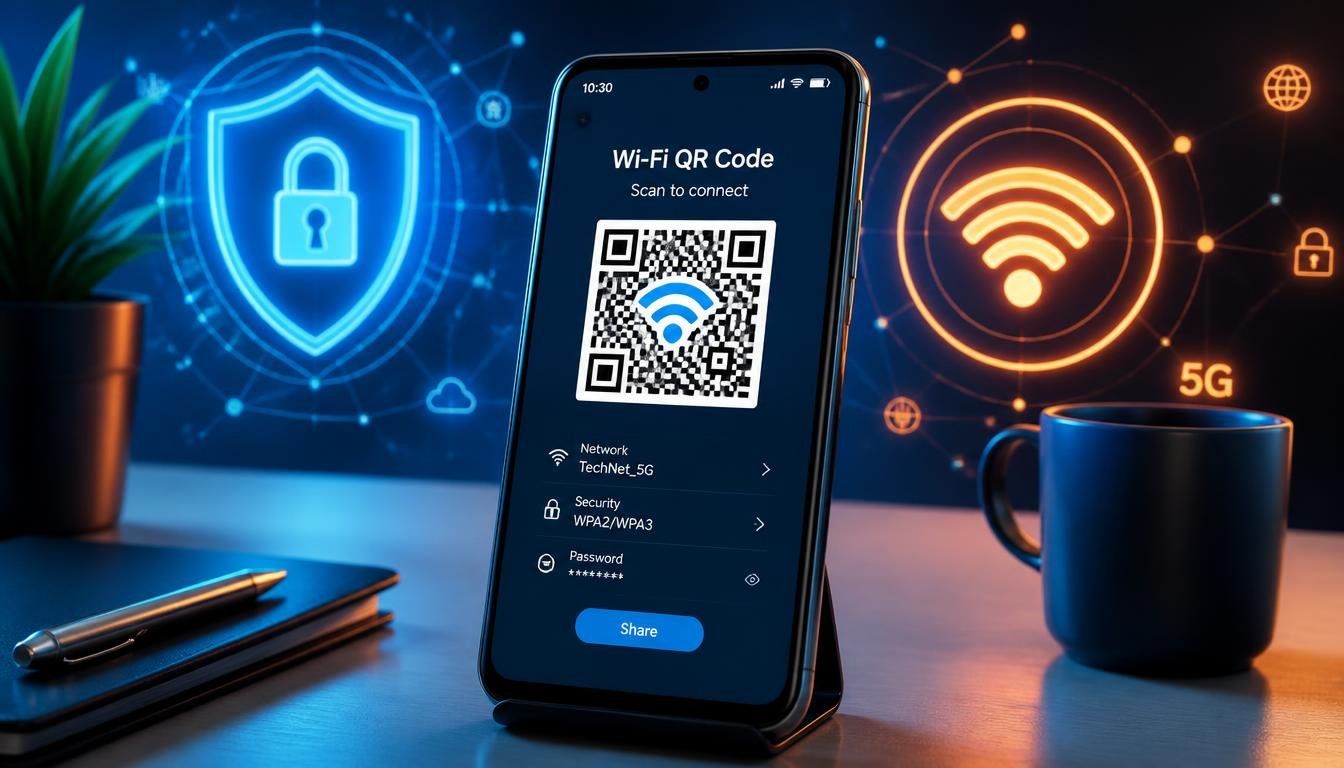
The fastest way to see a saved WiFi password on Android is through the built in Share Network feature found inside WiFi settings on Android 10, 11, 12, 13, and 14. Open Settings, tap Network and Internet, select the active WiFi connection, tap Share, and the plaintext password displays directly below a generated QR code without requiring root access or extra apps.
Method Comparison Table
| Method | Android Version | Root Needed | Setup Complexity | Success Rate |
| Native Share QR Code | Android 10, 11, 12, 13, 14 | No | Very Low | Very High (Active Network) |
| Samsung One UI Share Panel | One UI 4, 5, 6 on Galaxy | No | Very Low | Very High on Galaxy Hardware |
| Router Admin Gateway (192.168.1.1) | All Android Versions | No | Moderate | High (Local Router Access) |
| ADB Shell / WifiConfigStore | Android 9 and below, or Rooted 10+ | Yes for Android 10+ | High | High for Advanced Users |
How to See Saved WiFi Password on Android (Native Method for Android 10, 11, 12, 13, and 14)
Google updated network security parameters several versions ago, replacing plain text storage with the secure Share Network interface. This interface generates a scannable QR code and displays the actual security key in plain text directly beneath the image, functioning identically across Android 10 through Android 14 on Google Pixel, OnePlus, Xiaomi, and Motorola devices.
Step-by-Step Instructions
- Open the Settings app on your Android device.
- Tap Network and Internet, then tap Internet or WiFi.
- Tap the gear icon beside your currently connected network name.
- Tap Share, which is often marked with a small QR code symbol.
- Confirm your device screen lock using your fingerprint, PIN, or pattern when prompted.
- The screen displays a QR code, and the plaintext password appears directly underneath it.
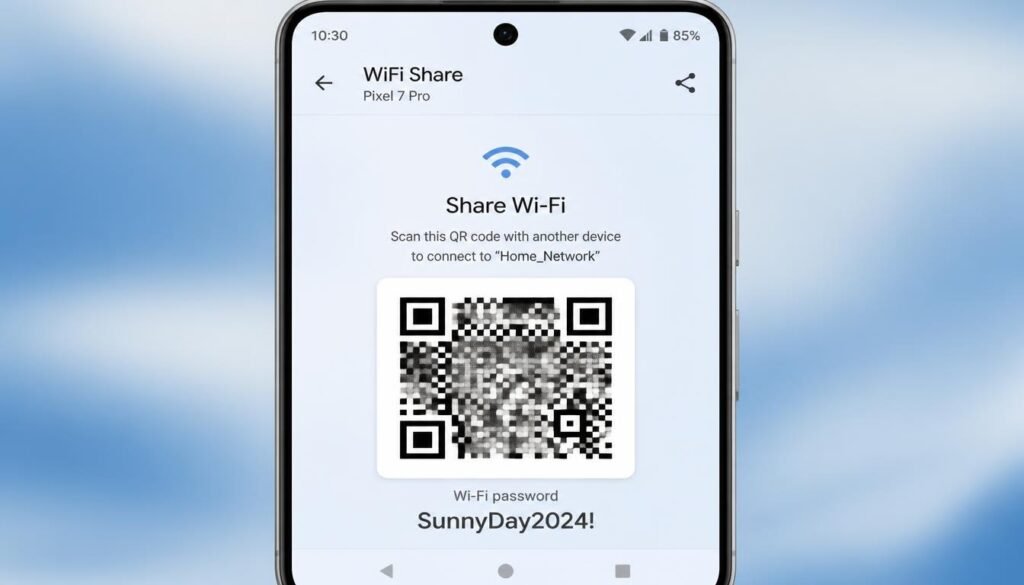
This is the cleanest answer to how to see saved WiFi password on Android, and it functions without an active cellular data connection or third party tools. The primary condition is that your phone must currently be connected to that specific network profile.
If a second phone needs to join the same router immediately, scanning the displayed code with a camera application completes the connection automatically. For a detailed walkthrough on verifying broadcast identities prior to scanning credentials, read our guide on how to find WiFi SSID to ensure you select the correct access point.
How to View WiFi Password on Samsung (Samsung One UI Specific Guide)
Samsung renames several system menus within One UI, meaning Galaxy users looking for how to view WiFi password on Samsung often find stock Android tutorials confusing. The core system function remains identical, but the menu labels follow a unique layout across One UI 5 and One UI 6 builds.
Step-by-Step for One UI 5 and One UI 6
- Open Settings on your Samsung Galaxy device.
- Tap Connections, then tap WiFi.
- Tap the gear icon located next to your active network connection.
- Tap QR Code located near the bottom or top of the network details screen.
- Authenticate using your registered biometric fingerprint or security PIN.
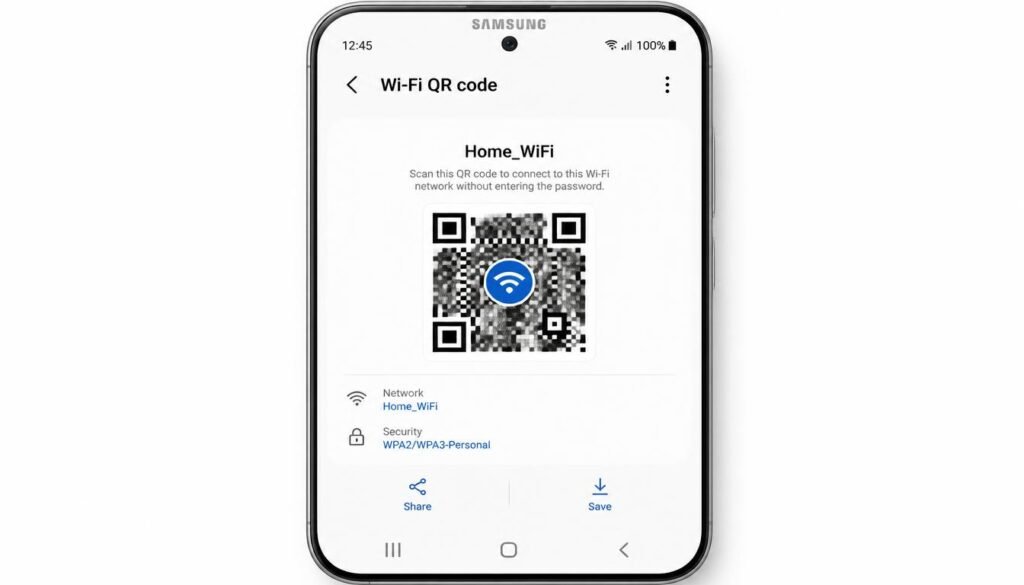
- The unmasked password text displays directly below the generated QR image.
How to See Saved WiFi Password on Android?
One UI Quick Share Shortcut
Galaxy smartphones also allow Quick Share to transmit network credentials wirelessly to another nearby Samsung device without requiring manual entry. Open the network QR code screen described above, then select Quick Share to send the credentials directly.
If your smartphone experiences repeated network drops during file transfers or credential sharing, learning how to fix a weak WiFi signal can help stabilize your local wireless frequencies.
How to See WiFi Password on Android Without QR Code (Router Admin Gateway Fallback Method)
The native Share feature requires an active connection, meaning it cannot display passwords for networks that are currently out of physical range. In those scenarios, accessing the local router management portal provides a direct solution, as the security key resides permanently inside the router firmware settings.
Step-by-Step Router Login Process
- Open any web browser on a phone connected to the local router network.
- Enter the default gateway IP address, typically 192.168.1.1 or 192.168.0.1, into the address bar.
- Locate the gateway IP on the physical router sticker if the default address fails to load.
- Log in using the administrative username and password printed on the router label.
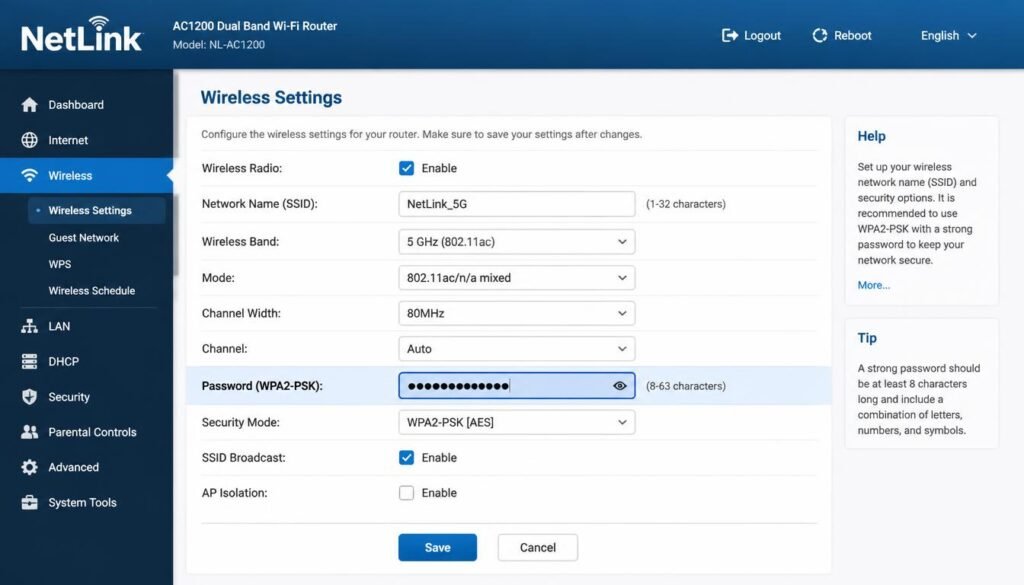
- Navigate to Wireless Settings or Security Settings inside the administrative dashboard.
- Locate the field labeled Passphrase, Security Key, or Pre-Shared Key to view the password.
This procedure answers how to see saved WiFi password on Android without root, operating entirely through a mobile browser without requesting elevated Android system privileges.
If your browser fails to load the administrative login screen despite being connected to the router, our troubleshooting walkthrough on WiFi connected but no internet access provides immediate steps to restore local network communications.
When managing router administration panels from a desktop browser, background system performance can occasionally cause browser stalls. Reviewing our technical guide on how to use a Windows 11 debloater to safely boost PC speed helps remove unnecessary background services that interfere with browser stability.
How to See Saved WiFi Password on Android Without Root (Google Lens and Camera Method)
A secondary non-root solution exists for users who have a second mobile device available and prefer not to navigate administrative router menus.
- Open the native Share QR Code panel on the primary Android phone using the steps detailed earlier.
- Open Google Lens or the default camera application on the second mobile device.
- Point the second camera at the displayed QR code on the primary screen.
- Tap the network connection pop-up to join the network instantly without typing any characters.
This resolves how to see saved WiFi password on Android without root for real world sharing situations, bypassing the need to transcribe complex alphanumeric passphrases manually.
If your secondary device repeatedly rejects connection requests during QR scanning, consult our guide covering how to fix a WiFi authentication issue to resolve password rejection errors.
How to Know WiFi Password in Phone Without Connected (Saved Networks History Method)
Users often search for how to know WiFi password in phone without connected, referring to historical networks that sit outside physical broadcasting range. Android restricts direct plain text access to inactive network credentials as a privacy barrier against unauthorized data extraction.
Practical Workarounds
- Use a Connected Secondary Device: Any active tablet or laptop currently connected to that access point can share credentials via QR code or local file transfer.
- Inspect Saved Network Lists: Navigating to Settings > Network and Internet > WiFi > Saved Networks displays all previously joined network names, confirming exact SSID spelling for manual router lookup.
- Access the Router Dashboard: Logging into the router gateway at 192.168.1.1 remains the most reliable option when your mobile device is out of range.
Advanced Method: ADB Command Line and Config File Access (WifiConfigStore and wpa_supplicant)
Power users, IT administrators, and mobile developers can retrieve saved network credentials directly from system storage files using a computer terminal.
System Storage Architecture
Legacy builds running Android 9 and older stored network credentials in clear text inside wpa_supplicant.conf. Modern builds running Android 10 through Android 14 store encrypted network profiles inside the WiFi config store located at /data/misc/apexdata/com.android.wifi/WifiConfigStore.xml, which requires elevated system access to read.
ADB Terminal Commands for Rooted Devices
- Enable Developer Options by tapping Build Number seven times inside Settings > About Phone.
- Enable USB Debugging inside the Developer Options menu.
- Connect the Android device to a computer using a high quality data cable.
- Launch your computer command terminal and execute the following root commands:
Plaintext
adb shell
su
cd /data/misc/wifi/
cat WifiConfigStore.xml
- Locate the network block matching your target SSID, where the credential appears inside the PreSharedKey field.
If your desktop computer fails to detect the connected mobile phone during ADB terminal configuration, reviewing our guide on a network adapter not working will assist in resolving local device interface errors.
For users executing terminal debugging commands while tethered to a mobile data access point, our comprehensive article detailing how to connect hotspot to laptop covers essential USB tethering driver setups.
Frequently Asked Questions
1. How do I see saved WiFi password on Android?
Open Settings, tap Network and Internet, select your connected network, and tap Share. Authenticate your screen lock to reveal a QR code with the plaintext password displayed directly underneath it.
2. How do I see saved WiFi password on Android without root?
The native Share QR code feature inside Android WiFi settings requires no root access, serving as the fastest built-in method on Android 10, 11, 12, 13, and 14.
3. How do I see WiFi password on Android without QR code?
Log into your router administrative panel by entering 192.168.1.1 into a browser, enter the admin credentials from the router label, and open the Wireless Security section to view the plain text passphrase.
4. Can I view WiFi password on Android online?
No legitimate online website can extract local WiFi passwords remotely. Always use built-in Android settings or your local router administrative panel to inspect network keys safely.
5. How do I view WiFi password on Samsung?
Open Settings, tap Connections, select WiFi, tap the gear icon next to your active network, and select QR Code to view the password text printed below the image on One UI devices.
6. How do I know WiFi password in phone without connected?
An Android device that is not currently connected to an active network cannot display that password natively. You must log into the router administrative panel directly or use another currently connected device.
7. How do I know other WiFi password in mobile?
Retrieving credentials for a network you do not own requires permission from the network administrator, as Android security features prevent unauthorized credential extraction.
8. How do I see saved WiFi password on Android Samsung?
Navigate through Connections > WiFi, tap the gear icon beside the active network, and select QR Code to reveal the plaintext security key on Samsung Galaxy smartphones.
9. Is there a saved WiFi password Android APK that works?
Third party application files claiming to reveal saved passwords generally require root permissions and carry security risks. Relying on the built-in system Share panel is completely safe and requires no extra software.
10. Why is the WiFi password hidden behind a QR code on Android?
Google introduced the QR code interface in Android 10 to protect users from visual password theft while still displaying the plain text key underneath for manual entry requirements.
Final Thoughts
Retrieving a saved WiFi password on modern Android smartphones takes less than thirty seconds using the built-in Share panel, requiring no third party applications, root permissions, or computers. Samsung Galaxy devices utilize the same system framework through slightly adjusted One UI menu titles, while router administrative portals offer a reliable fallback for inactive networks.
If your mobile device experiences ongoing connectivity failures across saved profiles, reading our complete diagnostic breakdown for a laptop not connecting to WiFi provides additional hardware and software troubleshooting strategies for home wireless environments.